
Fastfetch vs CPUFetch: Complete Comparison of Linux System Information Tools
Fastfetch vs CPUFetch are command-line tools that display system information, but they serve different purposes. Fastfetch provides a complete overview of your operating system and hardware, while CPUFetch focuses specifically on processor details such as architecture, cache, and CPU features.
This comparison explains the key differences between Fastfetch and CPUFetch, including their features, performance, customization, and practical uses, helping you choose the right tool for your Linux system.
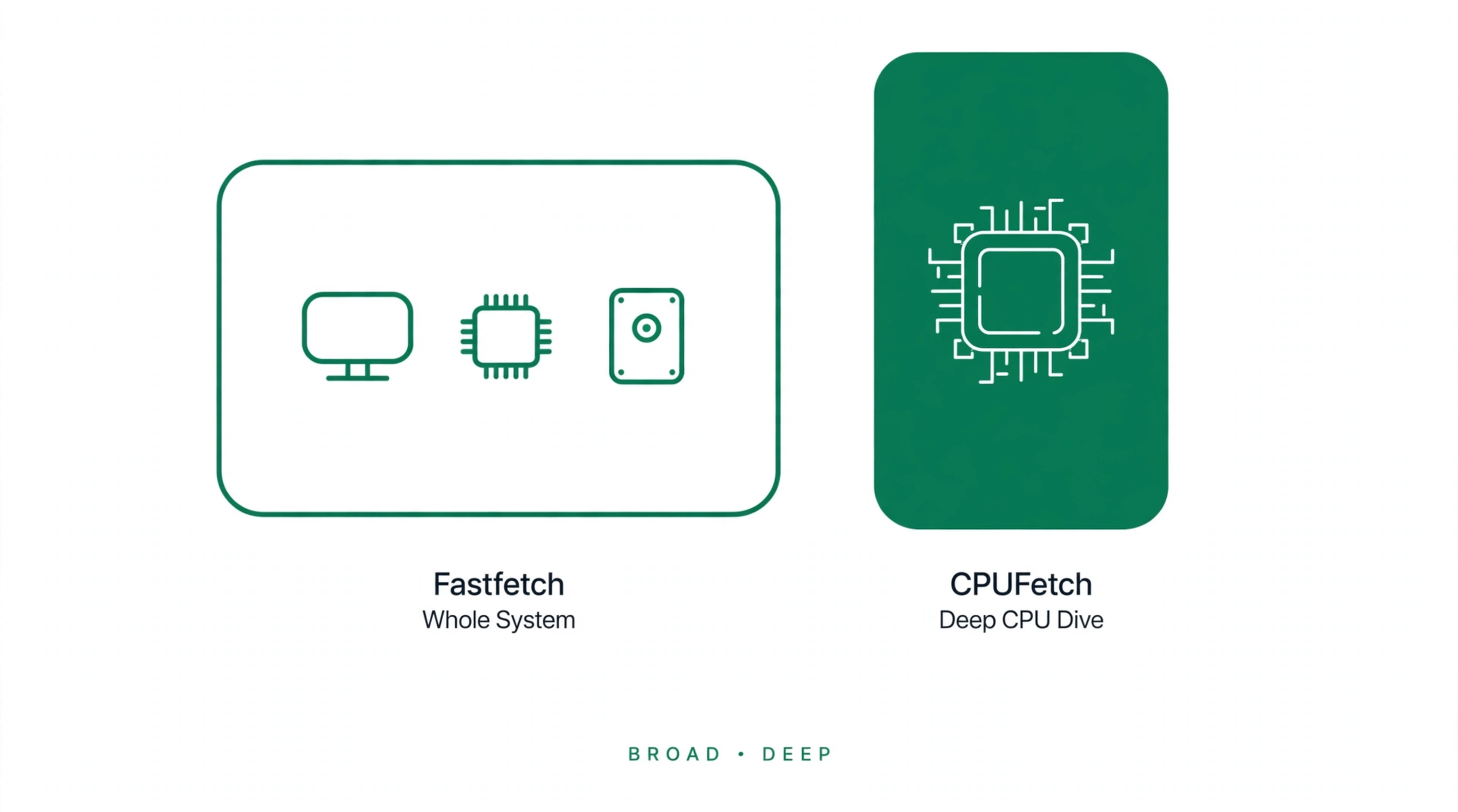
Fastfetch vs CPUFetch: Quick Comparison Overview
These tools serve different purposes. Fastfetch is designed for complete machine identification, while CPUFetch focuses on processor-level analysis and hardware details.
Provides a complete overview of your system configuration
Focuses on detailed processor information
OS, kernel, CPU, GPU, RAM, storage, desktop environment, and system details
CPU model, architecture, cores, threads, cache, and supported instructions
Users who want a quick summary of their complete computer setup
Developers and hardware enthusiasts analyzing CPU specifications
Advanced customization with modules, layouts, themes, and configuration files
Basic customization for colors and terminal display
Supports formats like JSON for reports and automation
Designed mainly for direct terminal viewing
Fast performance while collecting information from multiple components
Very lightweight because it only focuses on CPU data
Works across Linux, Windows, and macOS
Works on Linux, Windows, macOS, and Android (x86/x86_64 systems)
You need a complete system overview or terminal setup display
You need deeper insights into your processor hardware
Fastfetch is better for a complete system picture, while CPUFetch is better when you mainly want to understand your CPU in detail.
Fastfetch Command vs CPUFetch Command
The commands produce different output because each tool collects information from different parts of the system. Fastfetch focuses on overall machine details, while CPUFetch extracts processor-specific information.
fastfetch
Creates a complete profile of your computer environment
Data SourceCollects information from different hardware and software components
Main OutputTerminal-ready system summary with modules, logos, and configurable output sections
Output ComparisonShows a complete system summary with OS logos, hardware details, and customizable layouts
Visual PresentationUses distribution logos with flexible text-based layouts
Configuration LevelSupports advanced control over modules, formatting, and terminal appearance
Typical UsersLinux users, developers, and enthusiasts managing full system profiles
Common UsageTerminal customization, system documentation, and quick machine identification
cpufetch
Examines detailed characteristics of your processor
Data SourceReads CPU specifications and architecture-related data
Main OutputCPU model, microarchitecture, cache hierarchy, frequency, and supported features
Output ComparisonDisplays a compact CPU-focused report with processor branding and technical specifications
Visual PresentationUses CPU manufacturer visuals with a hardware-focused design
Configuration LevelProvides simple customization options for display style
Typical UsersHardware enthusiasts, developers, and users analyzing processor capabilities
Common UsageCPU verification, architecture learning, and processor diagnostics
Which Tool Is Better for Different Users?
The right tool depends on the user’s goal. Fastfetch is suitable for users who want a quick view of their complete setup, while CPUFetch is designed for those who need processor-focused information.
Linux Beginners
Best pick: FastfetchFastfetch is easier for new Linux users because it provides a simple overview of the machine without requiring advanced hardware knowledge. It helps beginners understand their system configuration through a clean and readable terminal display.
System Administrators
Best pick: FastfetchFastfetch can be useful for administrators who need quick system identification during routine checks. It helps gather essential machine details when managing multiple systems or preparing technical documentation.
CPU Enthusiasts
Best pick: CPUFetchCPUFetch is better suited for users interested in processor architecture and low-level hardware details. It is useful for exploring CPU design, performance-related features, and technical specifications.
Hardware Testing
Best pick: CPUFetchCPUFetch can support hardware testing tasks where processor verification is required. It allows users to examine CPU characteristics directly when comparing processors or checking hardware capabilities.
Can Fastfetch and CPUFetch Be Used Together?
Yes, Fastfetch and CPUFetch can work together in the same terminal session. Since both tools only display information and do not change system settings, they can be used side by side without conflicts.
Users can run each command separately or combine them using shell operators for a faster workflow.
Using both commands together is useful when you want to view different types of system information in one terminal session.
Running Both Commands Together
fastfetch; cpufetchThis runs CPUFetch after Fastfetch, even if the first command fails.
fastfetch && cpufetchThis ensures the second command runs only when the first command finishes without errors.
How to Install Fastfetch and CPUFetch Together
Installing Fastfetch and CPUFetch is straightforward. First, open your Terminal (Linux/macOS) or PowerShell (Windows), then run the command that matches your operating system.
Linux Users
If you use Ubuntu, Debian, or Linux Mint, run:
sudo apt updatesudo apt install fastfetch cpufetchFor Arch Linux or Manjaro users:
sudo pacman -S fastfetch cpufetchFor Fedora or RHEL systems:
sudo dnf install fastfetch cpufetchAfter the installation finishes, both tools will be ready to use.
macOS Users
macOS users can install both tools through Homebrew. Open Terminal and enter:
brew install fastfetch cpufetchWindows Users
Windows users can install Fastfetch and CPUFetch using Winget. Open PowerShell or Command Prompt and run:
winget install fastfetchwinget install cpufetchHow to Run Fastfetch and CPUFetch
Once installed, simply type these commands in your terminal:
fastfetchcpufetchfastfetch && cpufetchThis will show Fastfetch output first and CPUFetch information immediately after it.
Pros and Cons
Understanding the strengths and limitations of both tools helps you choose the right option based on your system monitoring or hardware analysis needs.
Fastfetch
Pros ConsCPUFetch
Pros ConsFrequently Asked Questions
Conclusion
Fastfetch and CPUFetch serve different purposes, so the right choice depends on the type of information you need. Fastfetch is useful for viewing and managing a complete system profile, while CPUFetch provides a closer look at processor-level details.
Both tools can be used together to get a broader understanding of a machine. Fastfetch helps with everyday system identification, whereas CPUFetch is valuable for users interested in CPU architecture and hardware analysis.

Adam Bennett
Adam Bennett writes the Fastfetch guides on this site, researching and testing each one against official Fastfetch documentation and other reliable technical sources to keep instructions accurate and up to date. Guides are reviewed and updated as Fastfetch continues to evolve, covering everything from installation and configuration to troubleshooting and comparisons with other terminal tools.